Medical appointment scheduling
5
min read
Guide benefits
This guide demonstrates how to use Proto's platform to automate medical appointment scheduling. This transaction-heavy interaction often burdens frontline staff and introduces delays for patients. Deploying an AI agent streamlines bookings, reduces administrative workload, and ensures accurate, real-time communication with users.
Who can benefit from this guide:
- Clinics and hospital networks
- Insurance providers offering healthcare coverage
- Health Maintenance Organisations (HMOs)
- IT teams responsible for digital health channels
- Operations or CX managers digitising patient support
Medical appointment scheduling
This workflow enables patients to independently book consultations, diagnostic procedures, and follow-up visits through a 24/7 conversational assistant available on web or messaging platforms. It reduces scheduling friction, lowers missed appointments, and frees frontline staff from handling repetitive inquiries—delivering a more seamless and accessible patient experience. The guide outlines how providers can automate appointment booking while integrating with internal calendars, doctor directories, and patient management systems. See how to automate medical appointment scheduling.
Medical bookings
1. Create a Trigger
Purpose: Create a new flow within AI Assistant Actions.
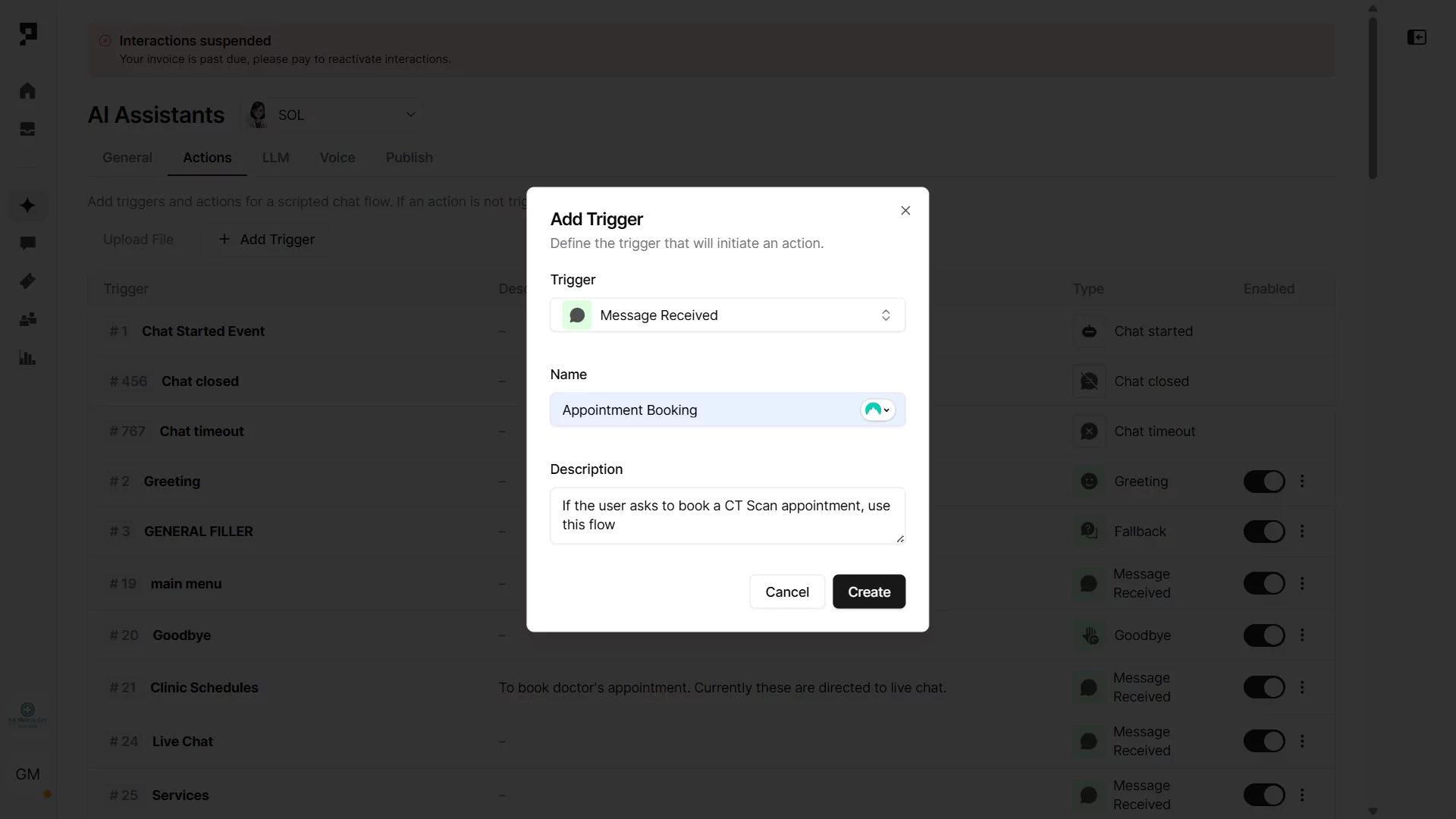
- Navigate to the Actions tab in the AI agent settings.
- Click “+ Add Trigger” button and select the Message Received trigger type.
- Name the trigger (e.g. “Appointment Booking”) and provide a short description like “Triggers if user requests to book a CT Scan appointment.”
- If your AI agentis powered by an LLM, the Description acts like a prompt to help the AI decide when to activate the trigger.
Learn more about AI Triggers and Actions.
2. Add a Message Action with quick replies
Purpose: Ask the user what procedure they want to book.
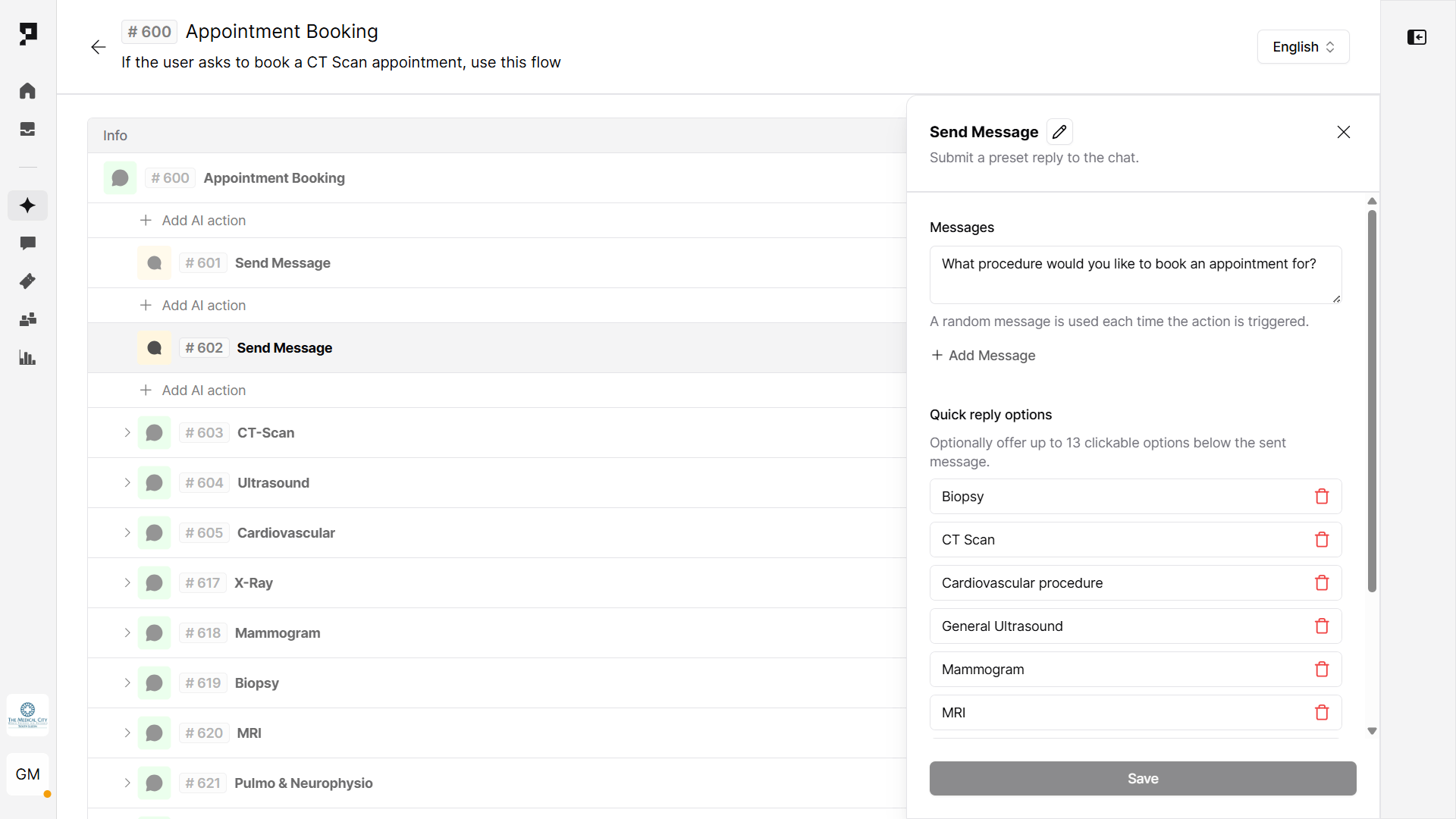
- Use a Send Message action to prompt: “What procedure would you like to book an appointment for?”
- Add Quick Reply options, such as:
- CT Scan
- Biopsy
- Cardiovascular procedure
- Ultrasound
- Mammogram
- X-Ray, MRI, etc
- If you have a long list of procedures, consider organizing them into nested Actions by category (e.g. Imaging, Cardiology, Laboratory)
3. Create sub-triggers for each category
Purpose: Trigger the selected procedure booking.
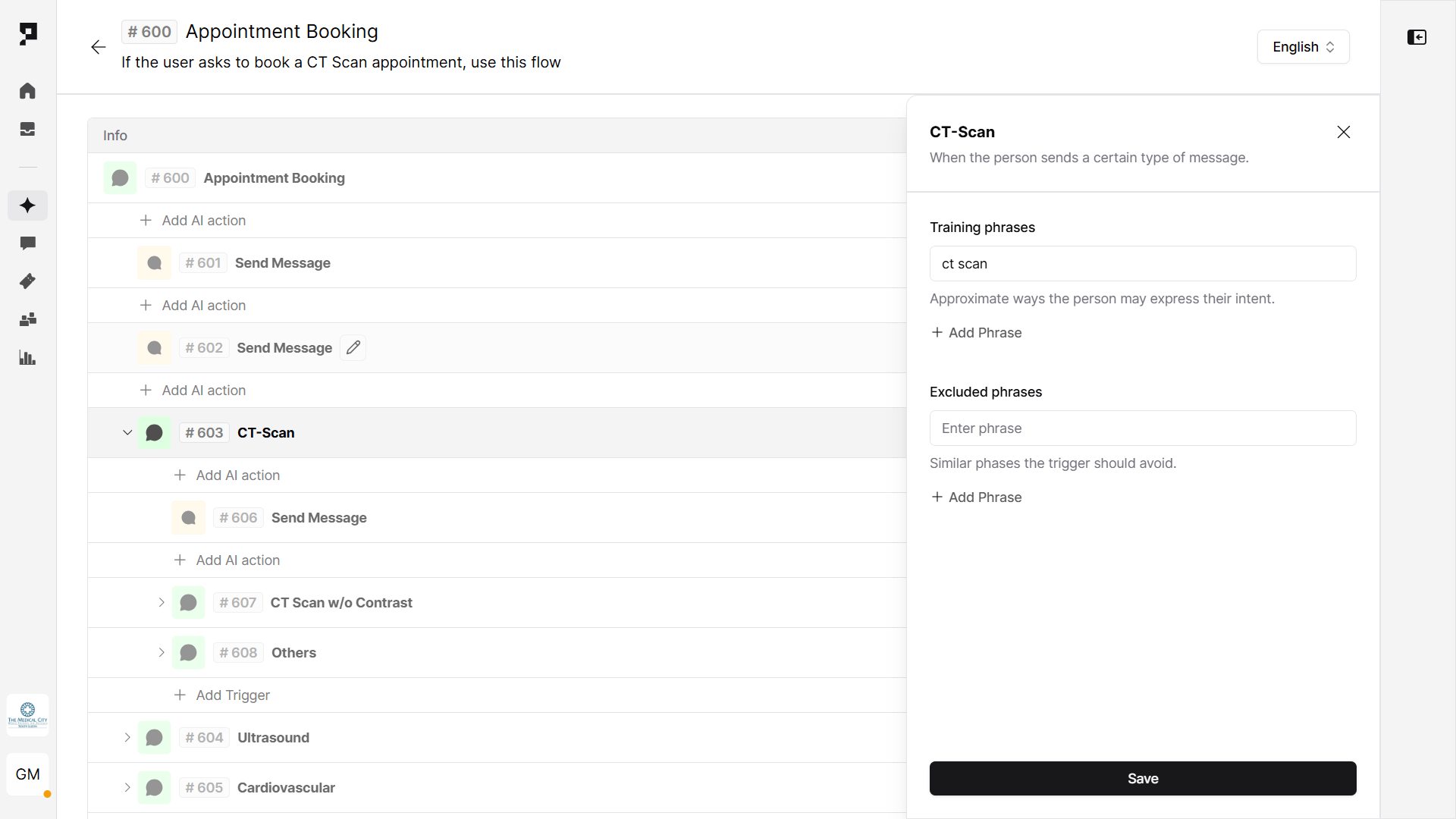
- For each procedure category, create a sub-trigger (Trigger type: Message Received)
- For each sub-trigger, add relevant training phrases. Training phrases are used to define the patient’s conversational intent. Once the patient’s message matches training phrases, the Trigger will be executed. Example:
- Trigger Name: CT-Scan booking
- Training Phrase: ct scan
This ensures that when the user selects "CT Scan," the AI agent triggers the correct flow (in this case all Actions under the “CT-Scan booking” trigger). You can add deeper nested sub-triggers to further guide users step-by-step, and include options to return to the previous step or exit the flow entirely.
4. Capture patient’s details for the booking
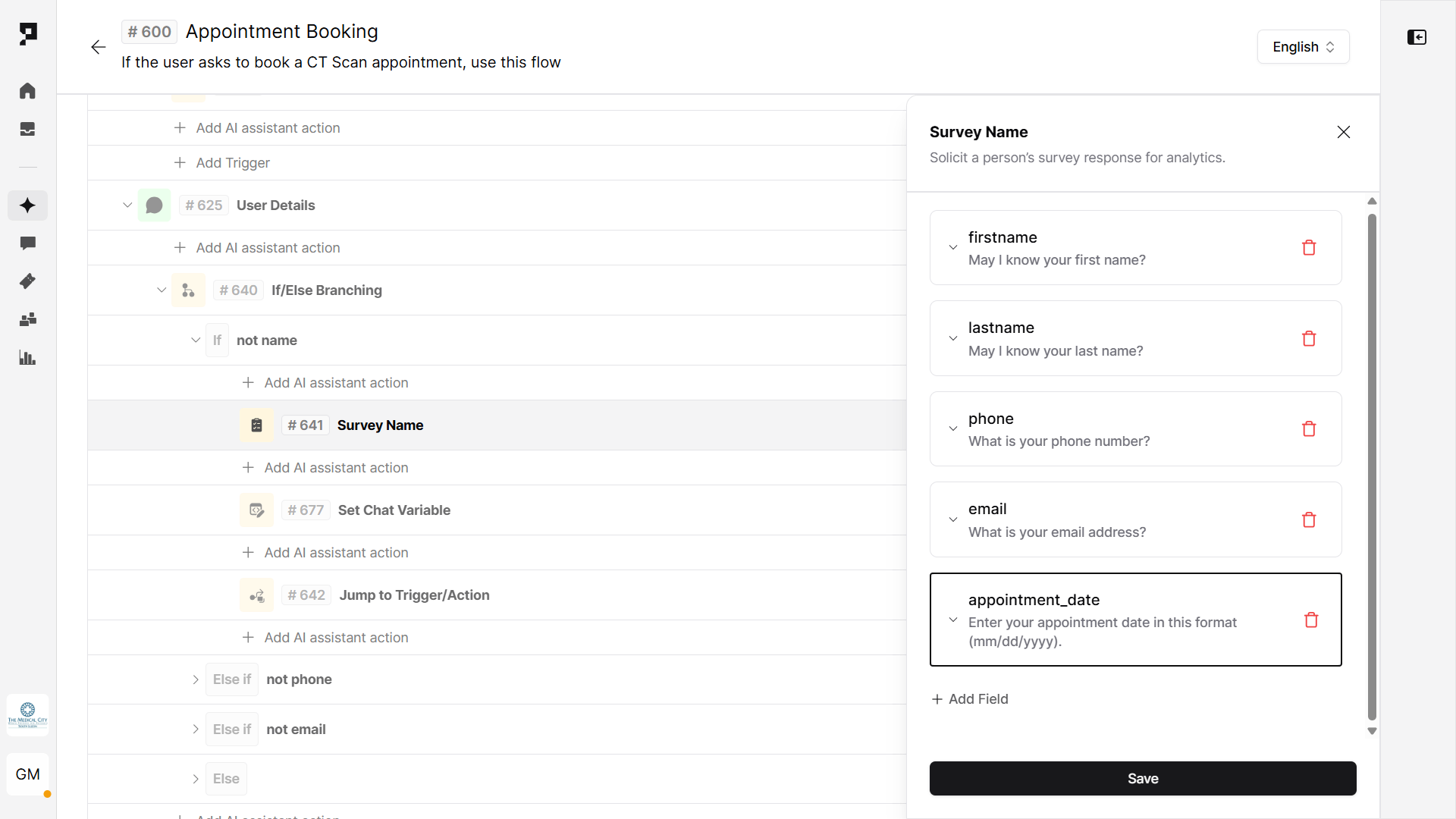
Purpose: Capture the patient’s personal details and the preferred date for the booking.
Use a Survey Action to collect the required information. Every value will be automatically stored in the related variable (e.g. appointment_date):
- First name (
first_name) - Last name (
last_name) - Email (
email) - Phone number (
mobile) - Preferred appointment date (
appointment_date) – format:mm/dd/yyyy
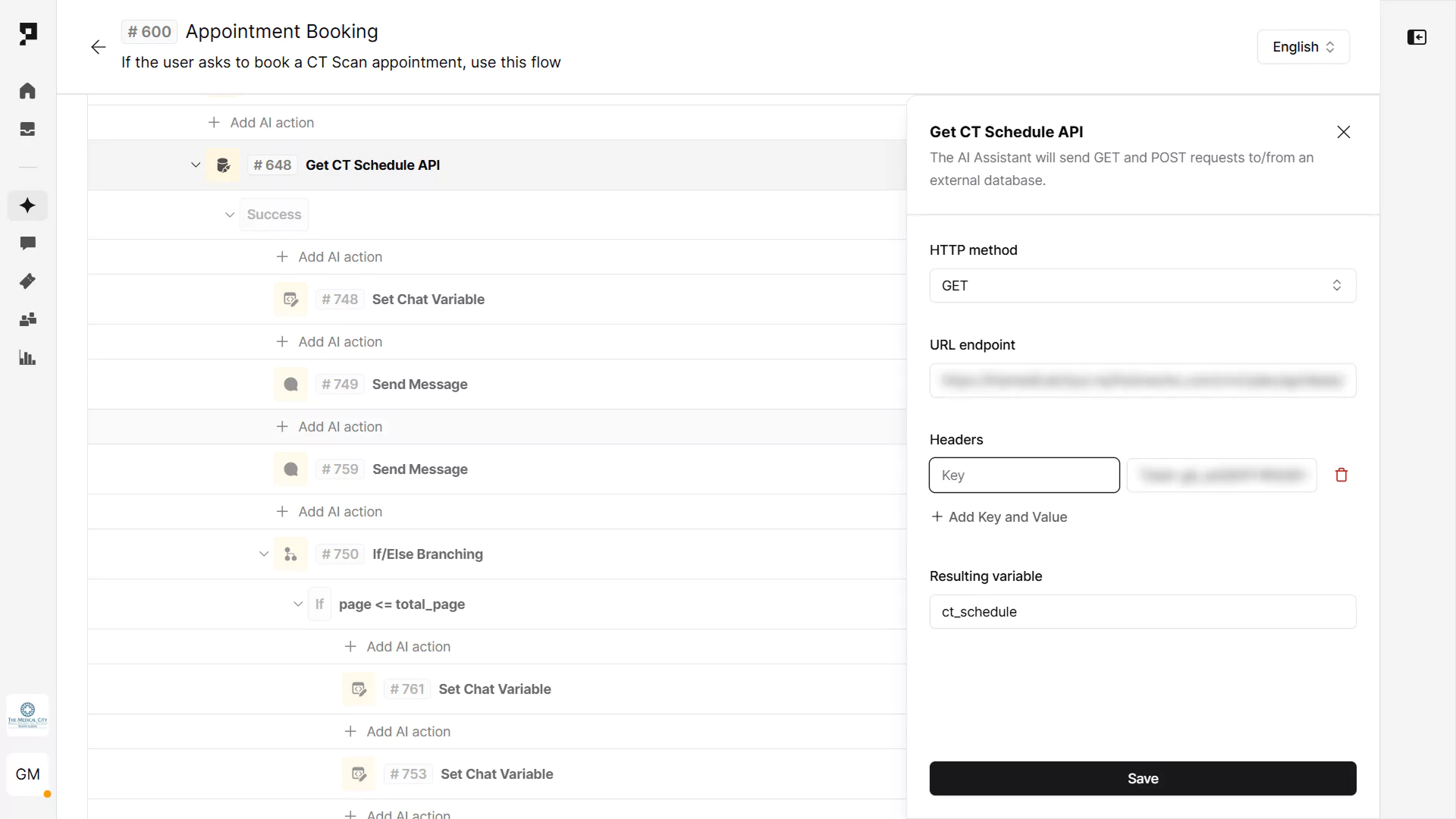
5. Check available time slots with API
Purpose: Use a backend scheduling API to validate slot availability.
- Use the Send API Request action. Method:
GET - Add URL endpoint, API key and define the variable to store the API response (e.g.
ct_schedule).
6. Confirm time slot availability
Purpose: Respond to the user with slot confirmation based on the API data.
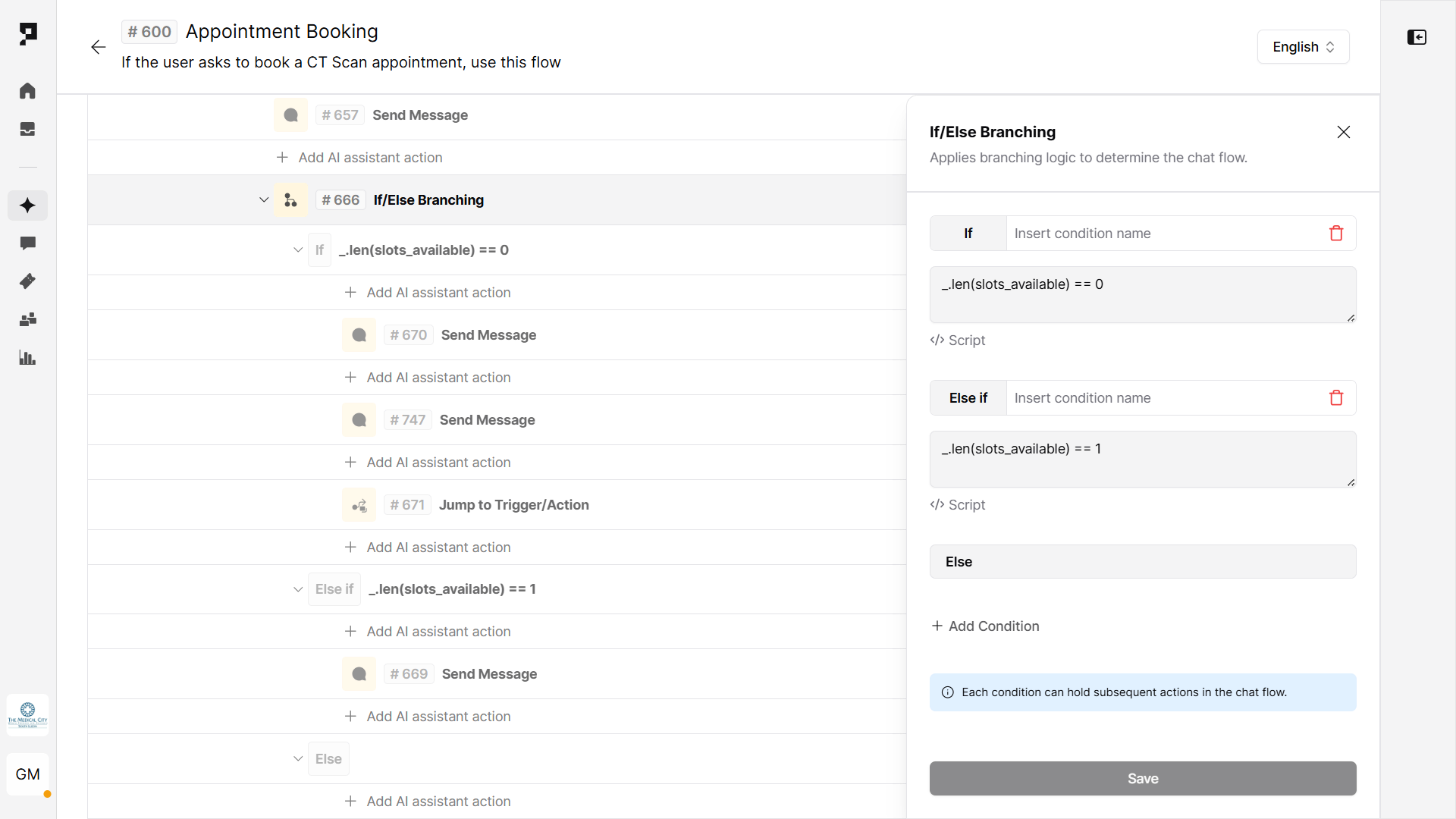
Use an If/Else Branching action to evaluate the API response variable (slots_available).
- Condition:
_.len(slots_available) == 0– Inform the user that no slots are available. - Condition:
_.len(slots_available) == 1– Confirm the available time slot and proceed to confirmation steps. - Else: Handle other unexpected or undefined states in the schedule response.
7. Confirm and create appointment
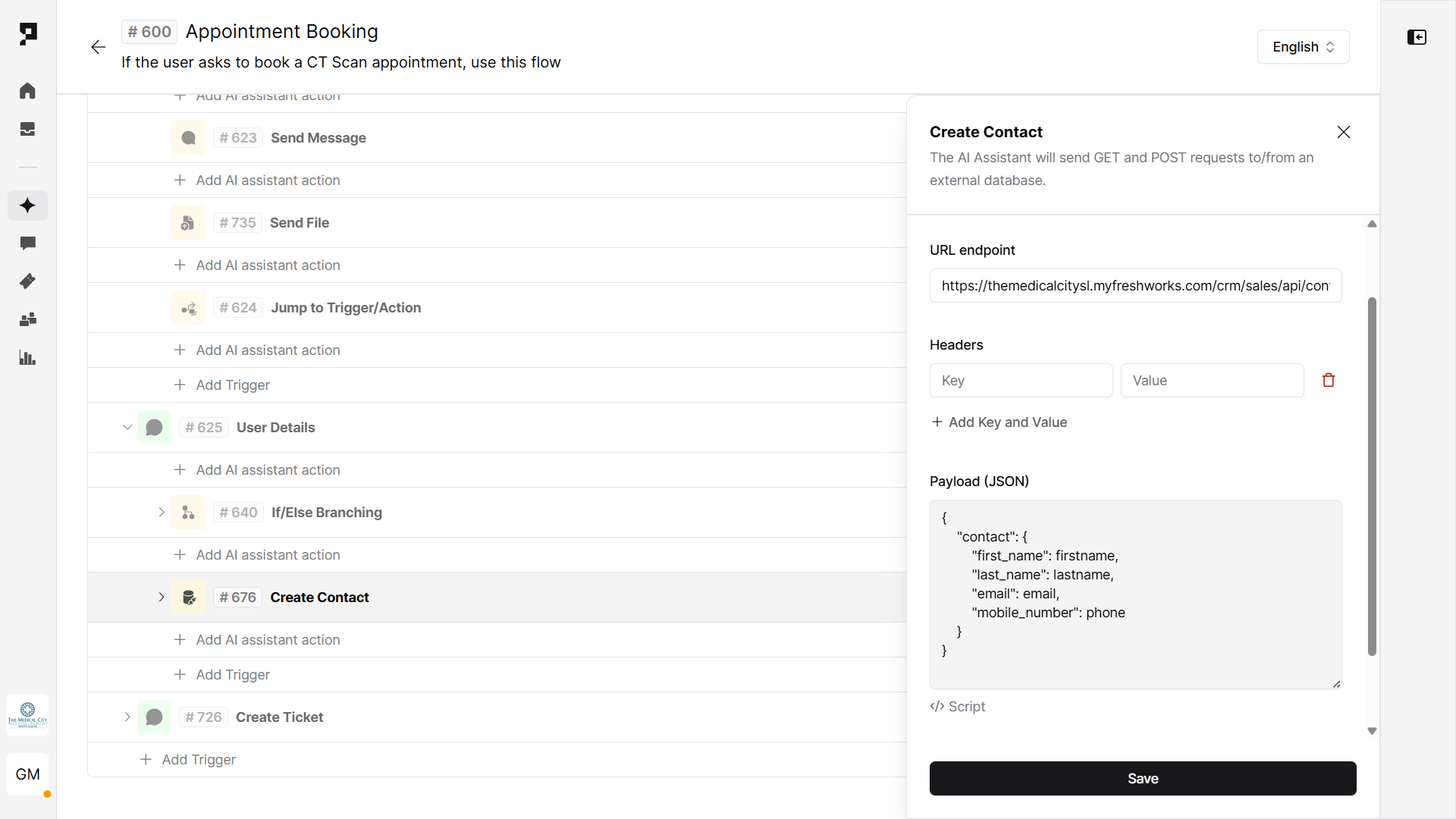
Purpose: Register the user in the system using collected contact details.
- Use the Send API Request action. Method:
POST - Add URL endpoint, API key and JSON payload with the patient’s details captured earlier.
8. Test the flow
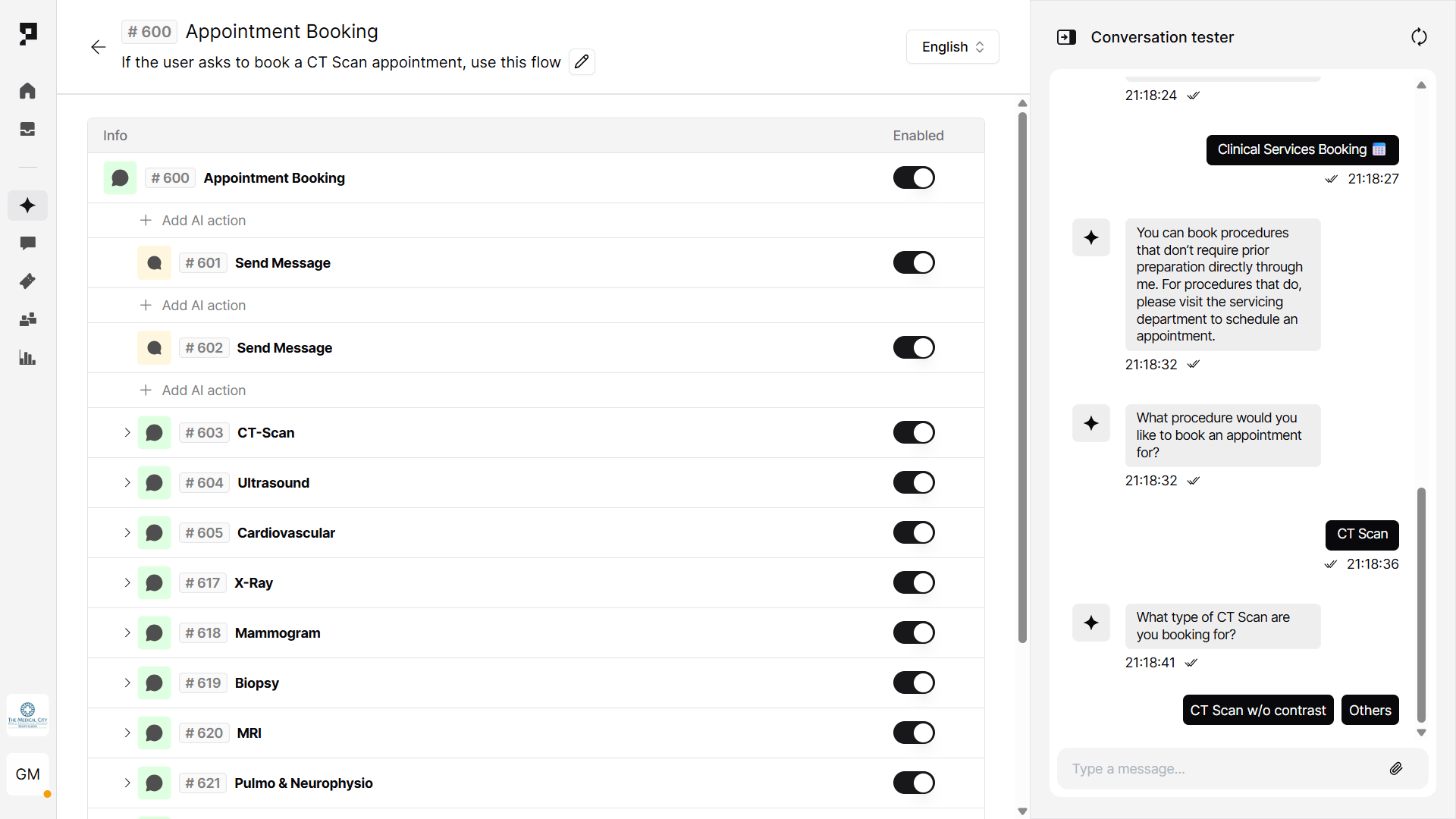
You can test your new workflow without leaving the Action settings, using the Conversation tester side panel. Finalize the AI agent deployment by configuring your preferred channels and languages.
Client stories
In the Philippines, The Medical City Clinic and The Medical City South Luzon use Proto’s platform to automate high-volume appointment bookings and related patient interactions.
- The Medical City Clinic’s agent handles over 10,000 chats monthly, covering appointment requests, test results, and clinic hours, with 52% automation. Read more.
- The Medical City South Luzon enables appointment flows across chat channels like Messenger and Viber, automating 63% of conversations. Read more.